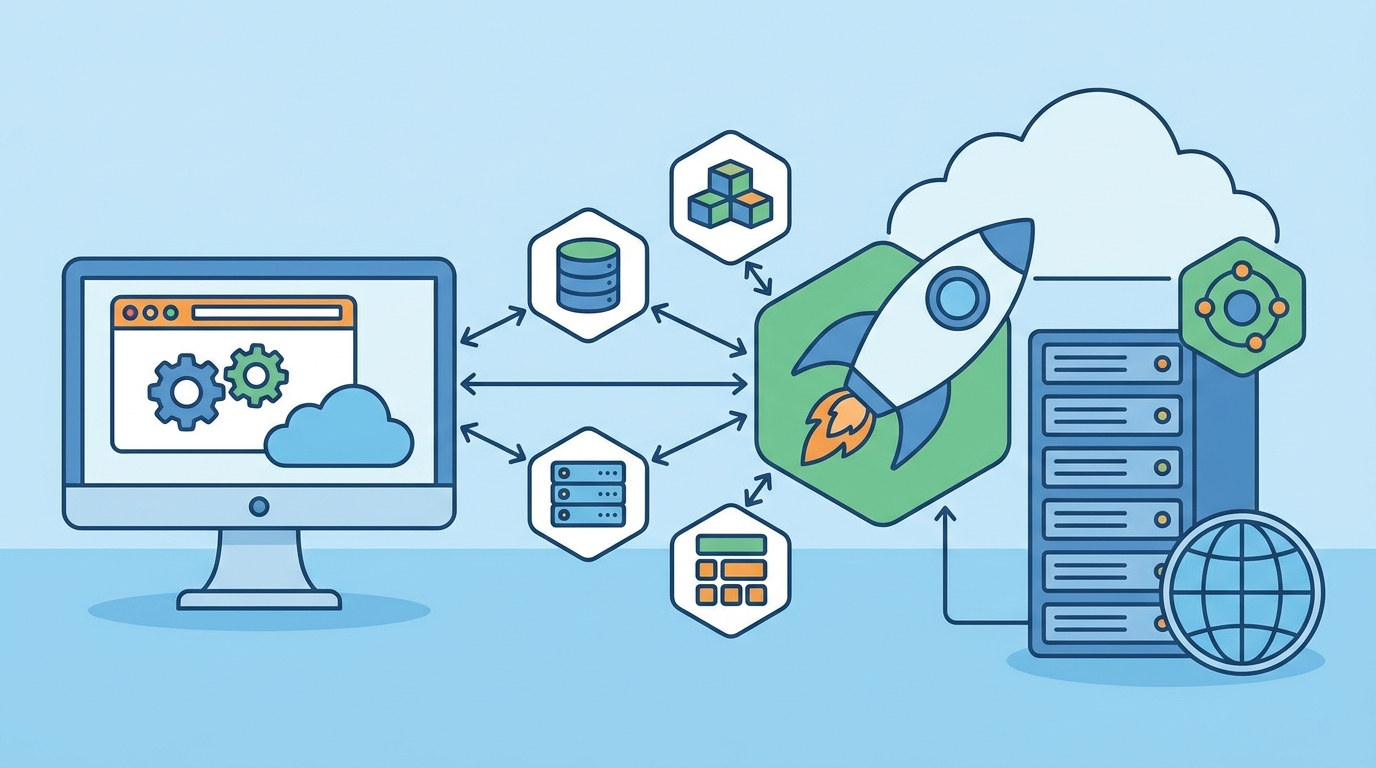
This content is step to set up and deploy the web and service include database on standalone server with dockerize from scratch.
In this VPS, I will deploy the platform that includes: web app (nuxt), api (nestjs), and db (mysql). For auto deploy, will use watchtower (auto-updater), with GitLab container registry. Also include setup ssl with Let's Encrypt for https.
For SSH, I will use Remote - SSH extension in VS Code to access VPS.
After receive the VPS credential.
Phase 1: Security & VPS Initialization
Login into VPS via SSH as root for set up security layer.
1. Update the system
apt update && apt upgrade -y(If prompted about ssh_config, select "keep the local version currently installed").
2. Create the Non-Root user (In this blog example is myadmin)
adduser myadmin(Follow the prompts to set a strong password).
3. Grant Admin (Sudo) Privileges
usermod -aG sudo myadmin4. Prepare the Application Directory
Instead of putting files in a personal home folder, I will create a system folder for the application and give ownership to the new user.
mkdir -p /opt/xyz-platform
chown -R myadmin:myadmin /opt/xyz-platform
Create another system folder for the database and give to the new user.
mkdir -p /opt/database
chown -R myadmin:myadmin /opt/database
5. Switch to VS Code Remote SSH
Ok, I done with the root user for this part 1.
5.1 Open VS Code on local machine.
5.2 Use the Remote - SSH extension.
5.3 Connect to: ssh myadmin@vps-ip .
5.4 After connected, open the folder /opt/xyz-platform. All terminal commands should be executed inside the VS Code terminal as the myadmin user.
Phase 2: Install Docker & Authenticate Gitlab
1. Install Docker & Add Permissions
Run the commands to install Docker and give myadmin user permission to use it.:
# Install Docker
curl -fsSL https://get.docker.com -o get-docker.sh
sudo sh get-docker.sh

# Add myadmin to the Docker group
sudo usermod -aG docker myadmin
(Noted: Close VS Code and Reconnect via SSH for the Docker group permission to take effect.)
2. Authenticate the Server with GitLab
Because GitLab that will use is private, the server needs permission to pull images.
Go to GitLab project -> Settings -> Repository -> Deploy Tokens.
Create a token with the read_registry scope.
In VS Code with connected SSH to VPS terminal. Run this command:
docker login registry.gitlab.com -u <your-deploy-token-username> -p <your-deploy-token-password>This will saves an auth file at ~/.docker/config.json, which Watchtower (service for looking for new image from GitLab Image Registry) will use to pull new updates.
Phase 3: Pushing Images to GitLab (CI/CD)
To get images into Gitlab, I will create a .gitlab-ci.yml file in web app and api repositories. GitLab automatically provides variables like $CI_REGISTRY to handle authentication.
Create the .gitlab-ci.yml file in the root of each repository.
stages:
  - build-and-push

variables:
  # This tags your image with the commit hash and "latest"
  IMAGE_TAG: $CI_REGISTRY_IMAGE:latest

build-docker-image:
  stage: build-and-push
  image: docker:24.0.5
  services:
    - docker:24.0.5-dind
  before_script:
    - docker login -u "$CI_REGISTRY_USER" -p "$CI_REGISTRY_PASSWORD" $CI_REGISTRY
  script:
    - docker build -t $IMAGE_TAG .
    - docker push $IMAGE_TAG
  only:
    - main # Only deploy when code is pushed to the main branch
When push code to main branch, GitLab will automatically build Dockerfile and store the image in project' Container Registry.
Phase 4: Database Docker Setup
To secure in Docker without exposing database to the public internet, use an External Docker Network. This will acts as a private virtual bridge connect the database into any other docker-compose.
1. Create the Private Network
Create a new virtual network. For any container connected to this network will be able to talk to each other using container names. Run this command.
docker network create db-network2. Create the database docker-compose.yml
Connect VS Code Remote SSH into /opt/database the directory that created at first step. Create a .env file here with master database credentials, then create the docker-compose.yml:
version: '3.8'

services:
  mysql:
    image: mysql:8.0
    container_name: mysql-db
    restart: always
    environment:
      TZ: Asia/Bangkok
      MYSQL_ROOT_PASSWORD: ${MYSQL_ROOT_PASSWORD}
      MYSQL_DATABASE: ${DB_NAME}
      MYSQL_USER: ${DB_USERNAME}
      MYSQL_PASSWORD: ${DB_PASSWORD}
    command: --default-time-zone='+07:00'
    volumes:
      - global_mysql_data:/var/lib/mysql
    networks:
      - db-network
    # Exposing the port is optional. Only do this if you need to
    # connect from DBeaver/PgAdmin on your local computer.
    ports:
      - "3306:3306"

volumes:
  mysql_data:

networks:
  # This tells Docker NOT to create a new network, but to connect to the one we made in Step 1
  global-db-network:
    external: true
3. Boot the database:
docker compose up -dDatabase will running permanently in the background.
Phase 5: Web and API with Auto Deploy
Go back to server inside /opt/xyz-platform, create docker-compose.yml file.
This file will orchestrates web app, api, and Watchtower (the audo-updater). Don't forgot to change image registry url.
version: '3.8'

services:
  api:
    image: registry.gitlab.com/username/api-nest-repo:latest
    container_name: api
    restart: always
    env_file:
      - .env
    ports:
      - "9001:3000"
    networks:
      - db-network
    labels:
    - "com.centurylinklabs.watchtower.enable=true"

  web:
    image: registry.gitlab.com/username/web-nuxt-repo:latest
    container_name: web
    restart: always
    env_file: .env
    ports:
      - "9000:3000"
    labels:
    - "com.centurylinklabs.watchtower.enable=true"

  # # The Auto-Deployer
  watchtower:
    image: containrrr/watchtower
    container_name: watchtower
    restart: always
    environment:
      - DOCKER_API_VERSION=1.41
      - WATCHTOWER_CLEANUP=true
      - WATCHTOWER_POLL_INTERVAL=60
      - WATCHTOWER_LABEL_ENABLE=true
    volumes:
      - /var/run/docker.sock:/var/run/docker.sock
      # This passes your GitLab login credentials into Watchtower
      - /home/deployer/.docker/config.json:/config.json
      # it gracefully shuts down the old container and boots the new one.

networks:
  db-network:
    external: true
Create a .env file in the same folder with api and web credentials.
The database lives in /opt/database that boot in previous step and will nerver touch it again unless update or configuration.
The app lives in /opt/xyz-platform that will connect to mysql from /opt/database with network db-network.
Boot the platform:
docker compose up -dIf want to shutdown, use this command.
docker compose downNow, we can access our platform web and api via VPS ip address with expose public internet ports. (9000 for web, 9001 for api, next step I will securely with SSL and close public port).
Phase 6: HTTPS via Let's Encrypt (Nginx & Certbot) with Dockerize
Finally, we need to expose Docker containers to the web securely. Nginx will act as the reverse proxy, and Certbot will automatically install and renew the Let's Encrypt SSL certificates. When container Nginx with Let's Encrypt, we need to vaoid writing manual nginx.conf files entirely, Instead, we use the nginx-proxy and acme-companion stack. These 2 containers will monitor Docker system. When they see Nuxt or NestJS containers turn on, they will automatically generate the Nginx routing rules and fetch the Let's Encrypt certificates based on hidden environment variables.
1. Create the web network
Like we created a db-network, so the API cloud talk to database securely in the background, we need a network so the Proxy can talk to the apps without exposing their ports to the public internet.
In VS Code Remote SSH terminal of VPS, Run this command.
docker network create web-network2. Build the Automated Proxy Stack
Put Nginx in its own dedicated folder so it acts as the centrailzed traffic cop for the whole server.
2.1 Create the folder:
mkdir -p /opt/reverse-proxy
cd /opt/reverse-proxy
2.2 Create the Proxy docker-compose.yml
Open VS Code Remote SSH with new folder (/opt/reverse-proxy), and create the file with this configuration. Don't forgot to change myemail@email.com so Let's Encrypt can register the certificates securely.
version: '3.8'

services:
  nginx-proxy:
    image: nginxproxy/nginx-proxy:alpine
    container_name: nginx-proxy
    restart: always
    ports:
      # This container is the ONLY thing exposed to the public internet
      - "80:80"
      - "443:443"
    volumes:
      - conf:/etc/nginx/conf.d
      - vhost:/etc/nginx/vhost.d
      - html:/usr/share/nginx/html
      - certs:/etc/nginx/certs:ro
      - /var/run/docker.sock:/tmp/docker.sock:ro
    networks:
      - web-network

  acme-companion:
    image: nginxproxy/acme-companion
    container_name: nginx-acme-companion
    restart: always
    environment:
      # Required by Let's Encrypt
      - DEFAULT_EMAIL=myemail@example.com
    volumes_from:
      - nginx-proxy
    volumes:
      - certs:/etc/nginx/certs:rw
      - acme:/etc/acme.sh
      - /var/run/docker.sock:/var/run/docker.sock:ro
    networks:
      - web-network
    depends_on:
      - nginx-proxy

volumes:
  conf:
  vhost:
  html:
  certs:
  acme:

networks:
  web-network:
    external: true
2.3 Start the Proxy Engine
docker compose up -dNginx is now running and waiting for apps to be reach.
2.4 (Optional) Custom config for Nginx
In /opt/reverse-proxy, create custom_nginx.conf for custom Nginx.
Update docker-compose.yml in volumes section for custom config.
    volumes:
      - ./custom_nginx.conf:/etc/nginx/conf.d/custom_nginx.conf:ro
Final docker-compose.yml of reverse-proxy should be like this.
version: '3.8'

services:
  nginx-proxy:
    image: nginxproxy/nginx-proxy:alpine
    container_name: nginx-proxy
    restart: always
    ports:
      # This container is the ONLY thing exposed to the public internet
      - "80:80"
      - "443:443"
    volumes:
      - conf:/etc/nginx/conf.d
      - ./custom_nginx.conf:/etc/nginx/conf.d/custom_nginx.conf:ro
      - vhost:/etc/nginx/vhost.d
      - html:/usr/share/nginx/html
      - certs:/etc/nginx/certs:ro
      - /var/run/docker.sock:/tmp/docker.sock:ro
    networks:
      - global-web-network


  acme-companion:
     # Same as previous acme-companion

volumes:
  # Same as previous volumes

networks:
  # Same as previous networks
3. Update the Platform Stack
Go back to main platform folder to attach platform both web and api to the new proxy.
3.1 Navigate to the app platform folder (/opt/xyz-platform)
3.2 Update the docker-compose.yml
I will make three security updates here.
- Add the VIRTUAL_HOST and LETSENCRYPT_HOST variables, with platform api.domain.com, web.domain.com
- Remove the ports completely (your apps are now protected behind the proxy).
- Connect them to the web-network.
* If don't has domain name, can use duckdns (https://www.duckdns.org/domains) to create sub domain to testing.
version: '3.8'

services:
  api:
    image: registry.gitlab.com/username/api-nest-repo:latest
    container_name: api
    restart: always
    env_file:
      - .env
    environment:
      # The MAGIC VARIABLES that trigger the auto-proxy and auto-SSL
      - VIRTUAL_HOST=api.domain.com
      - LETSENCRYPT_HOST=api.domain.com
      - VIRTUAL_PORT=3000
      - LETSENCRYPT_EMAIL=xyz-platform@domain.com
    networks:
      - db-network
      - web-network

  web:
    image: registry.gitlab.com/username/web-nuxt-repo:latest
    container_name: web
    restart: always
    env_file: .env
    environment:
      - VIRTUAL_HOST=web.domain.com
      - LETSENCRYPT_HOST=web.domain.com
      - VIRTUAL_PORT=3000
    networks:
      - web-network

  # # The Auto-Deployer
  watchtower:
    image: containrrr/watchtower
    container_name: watchtower
    restart: always
    environment:
      - DOCKER_API_VERSION=1.41
      - WATCHTOWER_CLEANUP=true
      - WATCHTOWER_POLL_INTERVAL=60
      - WATCHTOWER_LABEL_ENABLE=true
    volumes:
      - /var/run/docker.sock:/var/run/docker.sock
      # This passes your GitLab login credentials into Watchtower
      - /home/deployer/.docker/config.json:/config.json
      # it gracefully shuts down the old container and boots the new one.

networks:
  db-network:
    external: true
  web-network:
    external: true
4. The Final Boot
Ensure .env of web is pointing to https://api.domain.com and api has CORS enabled for https://web.domain.com. Then apply new Docker:
docker compose up -dNow, we can access our platform via domain name with https without expose internal port to public internet.
As for database, if we don't want to expose port to public, we can delete the expose port config for database docker-compose.yml.