
Let learn about google cloud platform with IAM via the challenge lab.
Challenge scenario
You are starting your career as a junior cloud architect. In this role, you have been assigned to work on a team project that requires you to use service accounts, configure IAM permission using the gcloud command line interface (CLI), add custom roles, and use the client libraries to access BigQuery from a service account.
Open Google Cloud Consult in an incognito window from the lab.
We can execute the tasks directly in the Cloud Shell or inside the specific VMs. In my case, I execute inside the VM that the lab provisions.
I will start at Task 2. For Task 1. We can skip it. It's an optional to chat with gemini on GCP for helping within the lab.
Task 2. Create a service account using the gcloud CLI
Go to Compute Engine > VM instances.
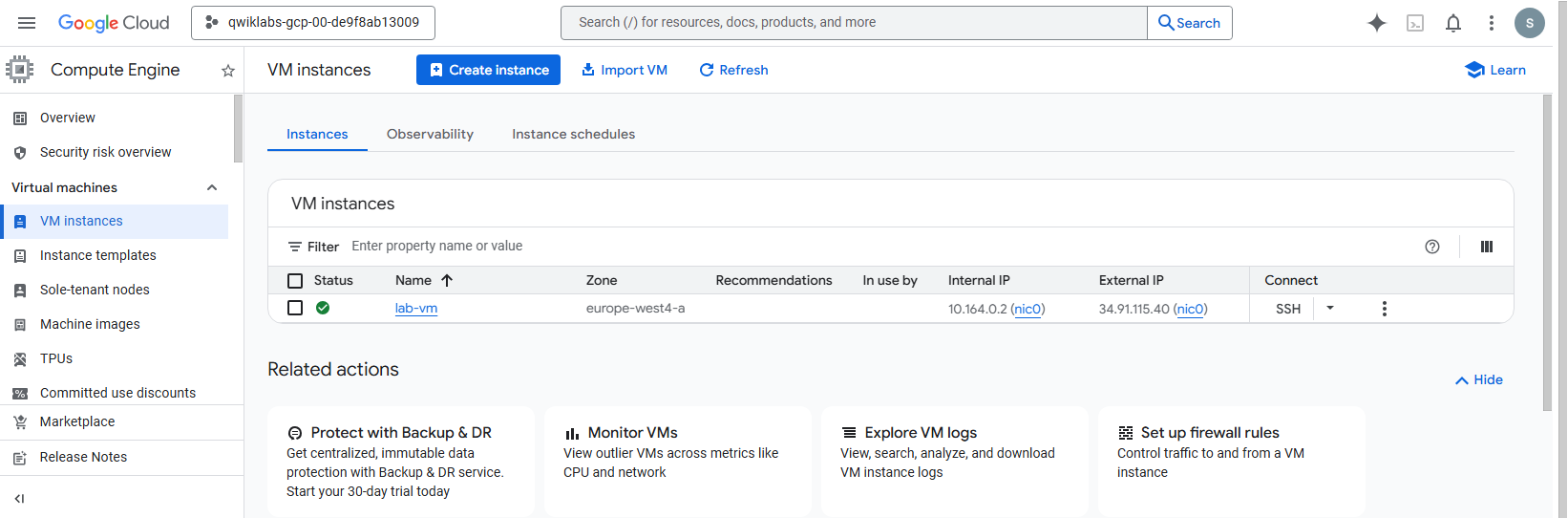
Locate
lab-vmand click the SSH button next to it. A new browser window will be open.Authenticate with gloud environment in SSH brower window by running the command.
gcloud auth login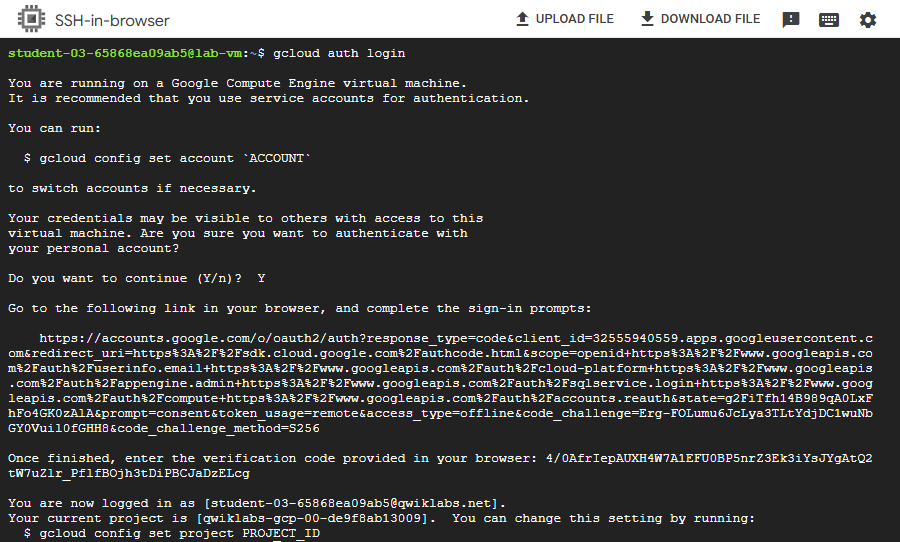
Open the link and sign-in with lab account. Then verify the code to authen with gcloud.
Set project ID with actual lab project ID, and run the command.
gcloud config set project <PROJECT_ID>Create the devops service account.
gcloud iam service-accounts create devops --display-name="devops"Check progress of Task 2.
Task 3. Grant IAM permissions to a service account using the gcloud CLI
Still inside the lab-vm SSH terminal. We will grant the devops account roles.
Export project id and service account email into variables.
export PROJECT_ID=$(gcloud config get-value project)
export SA=devops@$PROJECT_ID.iam.gserviceaccount.com
Grant the service account user role.
gcloud projects add-iam-policy-binding $PROJECT_ID \
  --member="serviceAccount:$SA" \
  --role="roles/iam.serviceAccountUser"
Grant the compute instance admin (v1) role.
gcloud projects add-iam-policy-binding $PROJECT_ID \
  --member="serviceAccount:$SA" \
  --role="roles/compute.instanceAdmin.v1"
Check progress of Task 3.
Task 4. Create a compute instance with a service account attached using gcloud
Still inside the lab-vm SSH terminal. We will create a new VM named vm-2 and attach the devops service account to it.
Fetch the zone of
lab-vminto variable, then buildvm-2with same zone.
export ZONE=$(gcloud compute instances list --filter="name=lab-vm" --format="value(zone)")Create vm-2.
gcloud compute instances create vm-2 \
  --zone=$ZONE \
  --service-account=$SA \
  --scopes="https://www.googleapis.com/auth/cloud-platform"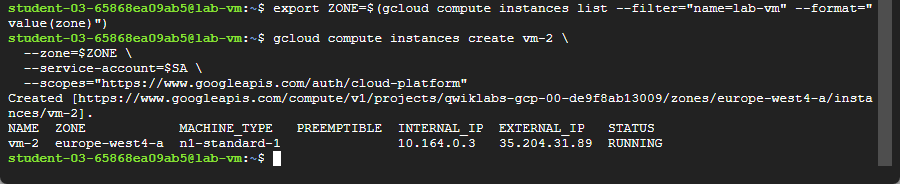
Check progress of Task 4.
Note: If not pass, you will need SSH into vm-2. You can try in cloud shell. For prevent SSH close with accident when exit from vm-2.
gcloud compute ssh vm-2 --zone=<ZONE>ZONE is the actual lab zone provision. eg. europe-west4-a. You can see the zone at the lab panel.
If accident close the SSH window, Just open with SSH from VM instances of lab-vm.
Then authenticate with gcloud. set PROJECT_ID, and SA variables again. We need to use it later. Can check the variable with the command to see it's has an information inside the variables:
echo PROJECT_ID
echo SA
Task 5. Create a custom role using a YAML file
In SSH terminal of lab-vm, define a custom role with cloudsql.instances.connect and cloudsql.instances.get permissions.
Create the role-definition.yaml file.
cat <<EOF > role-definition.yaml
title: "Custom SQL Role"
description: "Custom role for challenge lab"
stage: "ALPHA"
includedPermissions:
- cloudsql.instances.connect
- cloudsql.instances.get
EOF
Create the custom role at the project level.
gcloud iam roles create custom_role --project=$PROJECT_ID --file=role-definition.yaml

Check progress of Task 5.
Task 6. Use the client libraries to access BigQuery from a service account
Final task, we can continue in the same SSH terminal or open standard Cloud Shell.
Create the bigquery-qwiklab service account.
gcloud iam service-accounts create bigquery-qwiklab --display-name="bigquery-qwiklab"
export BQ_SA=bigquery-qwiklab@$PROJECT_ID.iam.gserviceaccount.com
Grant the BigQuery Data Viewer and BigQuery User roles.
gcloud projects add-iam-policy-binding $PROJECT_ID \
  --member="serviceAccount:$BQ_SA" \
  --role="roles/bigquery.dataViewer"

gcloud projects add-iam-policy-binding $PROJECT_ID \
  --member="serviceAccount:$BQ_SA" \
  --role="roles/bigquery.user"
Create the bigquery-instance VM and attach the service account.
gcloud compute instances create bigquery-instance \
  --zone=$ZONE \
  --service-account=$BQ_SA \
  --scopes="https://www.googleapis.com/auth/cloud-platform"
SSH into the new bigquery-instance.
gcloud compute ssh bigquery-instance --zone=$ZONEInstall Python dependencies inside bigquery-instance.
5.1 Fetch and set project id as variable.
export PROJECT_ID=$(gcloud config get-value project)5.2 Install Python dependencies
sudo apt-get update
sudo apt-get install -y python3-pip python3-venv
python3 -m venv myenv
source myenv/bin/activate
pip3 install --upgrade pip
pip3 install --upgrade google-cloud-bigquery
pip3 install pyarrow
pip3 install pandas
pip3 install db-dtypes
5.3 Create and run the Python file.
echo "
from google.auth import compute_engine
from google.cloud import bigquery
credentials = compute_engine.Credentials(
    service_account_email='bigquery-qwiklab@$PROJECT_ID.iam.gserviceaccount.com')
query = '''
SELECT name, SUM(number) as total_people
FROM "bigquery-public-data.usa_names.usa_1910_2013"
WHERE state = 'TX'
GROUP BY name, state
ORDER BY total_people DESC
LIMIT 20
'''
client = bigquery.Client(
    project='$PROJECT_ID',
    credentials=credentials)
print(client.query(query).to_dataframe())
" > query.py
5.4 Run the file.
python3 query.pyYou will see the data in the terminal.
Check progress of Task 6.
Note: If not pass, check the query file with nano command.
nano query.pyFor save and exit (ctrl+o, enter, ctrl+x)
The query code will be something like this but service account and project id will be use the actual lab project id.
echo "
from google.auth import compute_engine
from google.cloud import bigquery
credentials = compute_engine.Credentials(
    service_account_email='bigquery-qwiklab@qwiklabs-gcp-xx-xxxx.iam.gserviceaccount.com')
query = '''
SELECT name, SUM(number) as total_people
FROM "bigquery-public-data.usa_names.usa_1910_2013"
WHERE state = 'TX'
GROUP BY name, state
ORDER BY total_people DESC
LIMIT 20
'''
client = bigquery.Client(
    project='qwiklabs-gcp-xx-xxxx',
    credentials=credentials)
print(client.query(query).to_dataframe())
" > query.py
Done. Complete the lab.