Link Lab: https://www.skills.google/course_templates/645/labs/593323
Let learn about implement cloud security foundamentals o ngoogle cloud via challenge lab.
Challenge scenario
You have started a new role as a junior member of the security team for the Orca team in Jooli Inc. Your team is responsible for ensuring the security of the Cloud infrastructure and services that the company's applications depend on.
Task 1. Create a custom security role
0. Check the VM instances. We will find a orca-jumphost that the lab provisioned.

1. Open Cloud Shell.
2. Set values from the lab.
export CUSTOM_ROLE="[CUSTOM_ROLE_NAME]"
export SA_NAME="[SERVICE_ACCOUNT_NAME]"
export CLUSTER_NAME="[CLUSTER_NAME]"
export ZONE="[ZONE]"
export PROJECT_ID=$(gcloud config get-value project)
3. Create a yaml file defining the permissions.
cat <<EOF > role-definition.yaml
title: "$CUSTOM_ROLE"
description: "Custom role for challenge lab storage access"
stage: "ALPHA"
includedPermissions:
- storage.buckets.get
- storage.objects.get
- storage.objects.list
- storage.objects.update
- storage.objects.create
EOF
4. Create the custom role at the project level.
gcloud iam roles create $CUSTOM_ROLE --project=$PROJECT_ID --file=role-definition.yamlTask 2. Create a service account
1. Create the account.
gcloud iam service-accounts create $SA_NAME --display-name="Orca Private Cluster SA"2. Export the full email address into variable.
export SA_EMAIL="$SA_NAME@$PROJECT_ID.iam.gserviceaccount.com"Task 3. Bind a custom security role to a service account
1. Apply the required role.
gcloud projects add-iam-policy-binding $PROJECT_ID \
  --member="serviceAccount:$SA_EMAIL" \
  --role="roles/monitoring.viewer"

gcloud projects add-iam-policy-binding $PROJECT_ID \
  --member="serviceAccount:$SA_EMAIL" \
  --role="roles/monitoring.metricWriter"

gcloud projects add-iam-policy-binding $PROJECT_ID \
  --member="serviceAccount:$SA_EMAIL" \
  --role="roles/logging.logWriter"

gcloud projects add-iam-policy-binding $PROJECT_ID \
  --member="serviceAccount:$SA_EMAIL" \
  --role="projects/$PROJECT_ID/roles/$CUSTOM_ROLE"
Task 4. Create and configure a new Kubernetes Engine private cluster
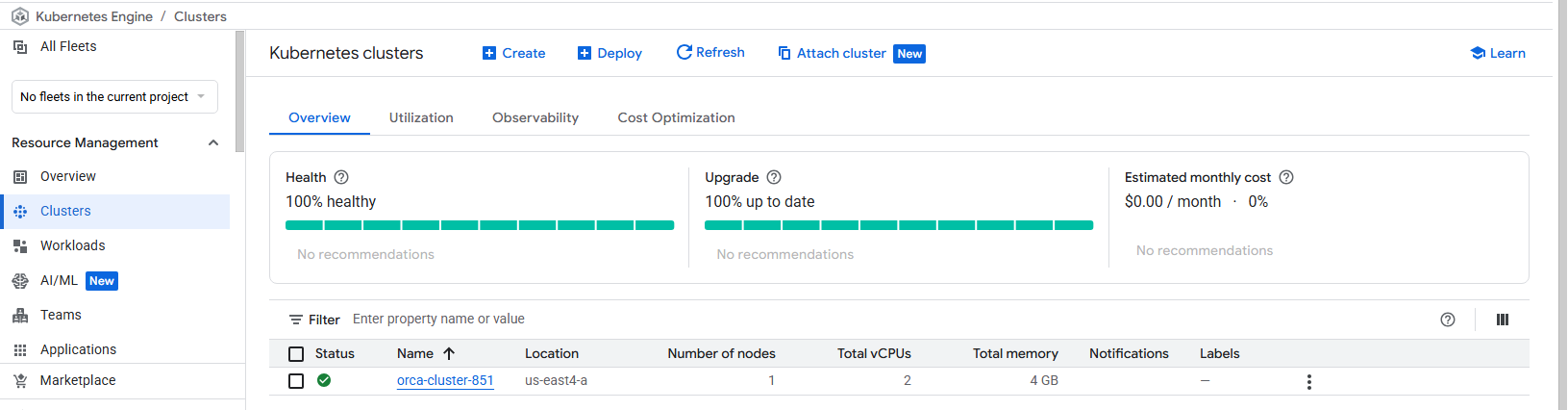
1. Run the following command to create cluster (It's will takes 5-8 minutes to complete).
gcloud container clusters create $CLUSTER_NAME \
  --zone=$ZONE \
  --num-nodes=1 \
  --master-ipv4-cidr=172.16.0.64/28 \
  --network=orca-build-vpc \
  --subnetwork=orca-build-subnet \
  --enable-master-authorized-networks \
  --master-authorized-networks=192.168.10.2/32 \
  --enable-ip-alias \
  --enable-private-nodes \
  --enable-private-endpoint \
  --service-account=$SA_EMAIL
Cluster will be created. If create an incorrect cluster, can use the command before to temporary create a new cluster then delete the incorrect one (Because for passing the lab need to use correct cluster name and we will can't create a same cluster name. Also we can't remove the only one cluster, so that we need to create a temp cluster to delete the incorrect one.).
Task 5. Deploy an application to a private Kubernetes Engine cluster
In Task 4. We disabled the public endpoint, Now we cannot connect to the cluster from standard cloud shell. We will use SSH into the orca-jumphost and deploy from the jumphost.
1. SSH into the jumphost.
gcloud compute ssh orca-jumphost --zone=$ZONE2. Wait for accessing into jumphost, then authenticate to the cluster using internal IP.
sudo apt-get install google-cloud-sdk-gke-gcloud-auth-plugin -y

gcloud container clusters get-credentials [CLUSTER_NAME] --zone [ZONE] --internal-ip
3. Deploy a simple test application to cluster access.
kubectl create deployment hello-server --image=gcr.io/google-samples/hello-app:1.0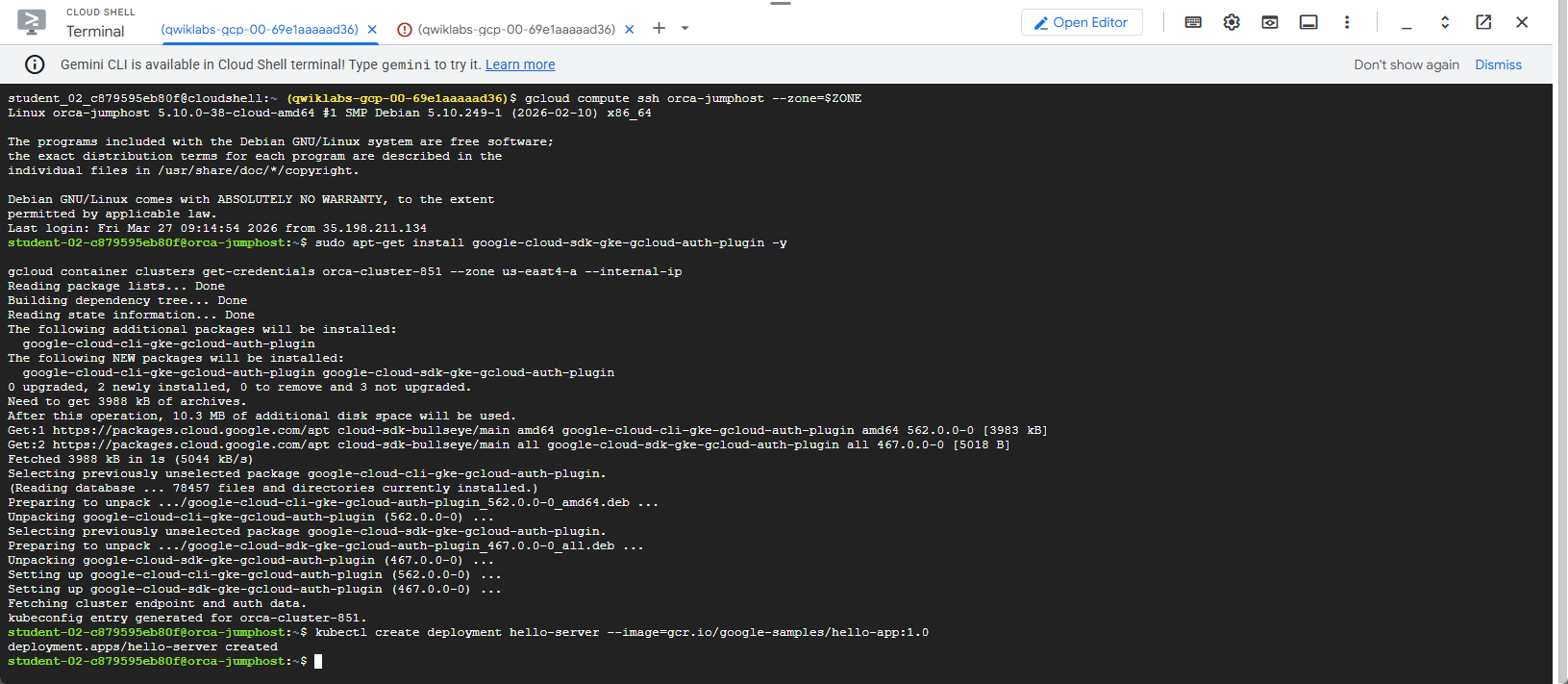
Congratulations. Done the lab.